In today’s connected world, many people rely on more than just one device. From smartphones and tablets to laptops and smartwatches, each device plays a unique role in our daily lives. With EWPS (Extended Warranty Protection Service), you can protect all your essential devices under one account. This guide will walk you through the process of adding and registering multiple devices on your EWPS account, so you can enjoy peace of mind across all your tech.
Why Register Multiple Devices?
Registering multiple devices under your EWPS account allows you to:
- Ensure Comprehensive Protection: Secure all your devices, not just one, from accidental damage and unexpected repairs.
- Simplify Management: Track all device warranties and protection plans in one place.
- Save Money: Enjoy bundled protection options for families or businesses with multiple devices.
Step-by-Step Guide to Adding and Registering Multiple Devices on EWPS
Step 1: Log Into Your EWPS Account
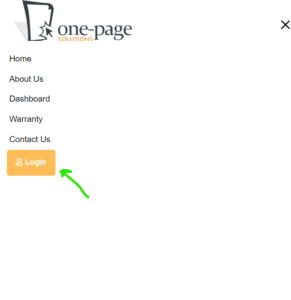
- Visit the official EWPS website or open the mobile app.
- Use your email and password to log into your account. If you don’t have an account yet, you’ll need to create one by following the registration steps.
Step 2: Go to the “Add Device” Section
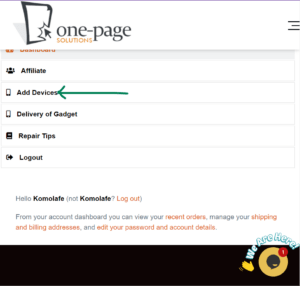
- After logging in, navigate to the “Add Device” option. This section is usually found in the main menu or under your profile settings.
- Here, you’ll see the option to register a new device to your account.
Step 3: Enter Device Information
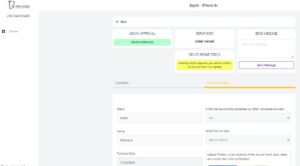
- For each device, you’ll need to provide specific details, including:
- Device Type (e.g., smartphone, tablet, laptop)
- Brand and Model
- Serial Number or IMEI (if applicable)
- Purchase Date
- Proof of Purchase (optional, but necessary if available)
- Ensure that all details are entered correctly to avoid any issues with your warranty.
Step 4: Select a Protection Plan for Each Device
- EWPS offers various protection plans for different devices, each with unique benefits.
- Choose the plan that best suits your device needs. For example, you might choose a more comprehensive plan for your primary smartphone and a basic plan for a secondary device.
- Note that each device may require a separate protection plan based on its value and usage.
Step 5: Review and Confirm
- Double-check all the information for accuracy. Make sure you’ve selected the right plan for each device.
- Confirm your entries and proceed to payment if required.
Step 6: Manage Your Registered Devices
- Once added, all registered devices will appear under your EWPS account dashboard.
- You can view the warranty status, manage plans, and update device details from this section.

Tips for Registering Multiple Devices on EWPS
- Choose the Right Plan for Each Device: Since each device has a different purpose, opt for a plan that matches its importance. For example, choose a high-protection plan for work devices and a basic plan for secondary devices.
- Keep Your Receipts Handy: If a repair needs to be made, having a proof of purchase makes the process easier. You can upload these during the registration process.
- Renew on Time: To maintain uninterrupted protection, make sure to renew each plan on time. EWPS usually sends reminders when a plan is about to expire.
- Monitor Device Status: Use the dashboard to check the coverage status of each device, which helps you stay informed about the warranty status and ensures you get the most out of your plan.
Registering multiple devices on your EWPS account is a simple process that brings added security to all your tech essentials. By following these steps, you can ensure that all your devices are covered and ready for any accidental damage or unexpected repairs. Protect what matters most with EWPS and enjoy peace of mind knowing your devices are safe.